
What Copilot can see in your organisation, and what to tidy up before launch
Microsoft 365 Copilot uses the access rights your employees already have. Here is how to review sharing in SharePoint, Teams and OneDrive before launch.
 Håkon BerntsenChief Technology Officer
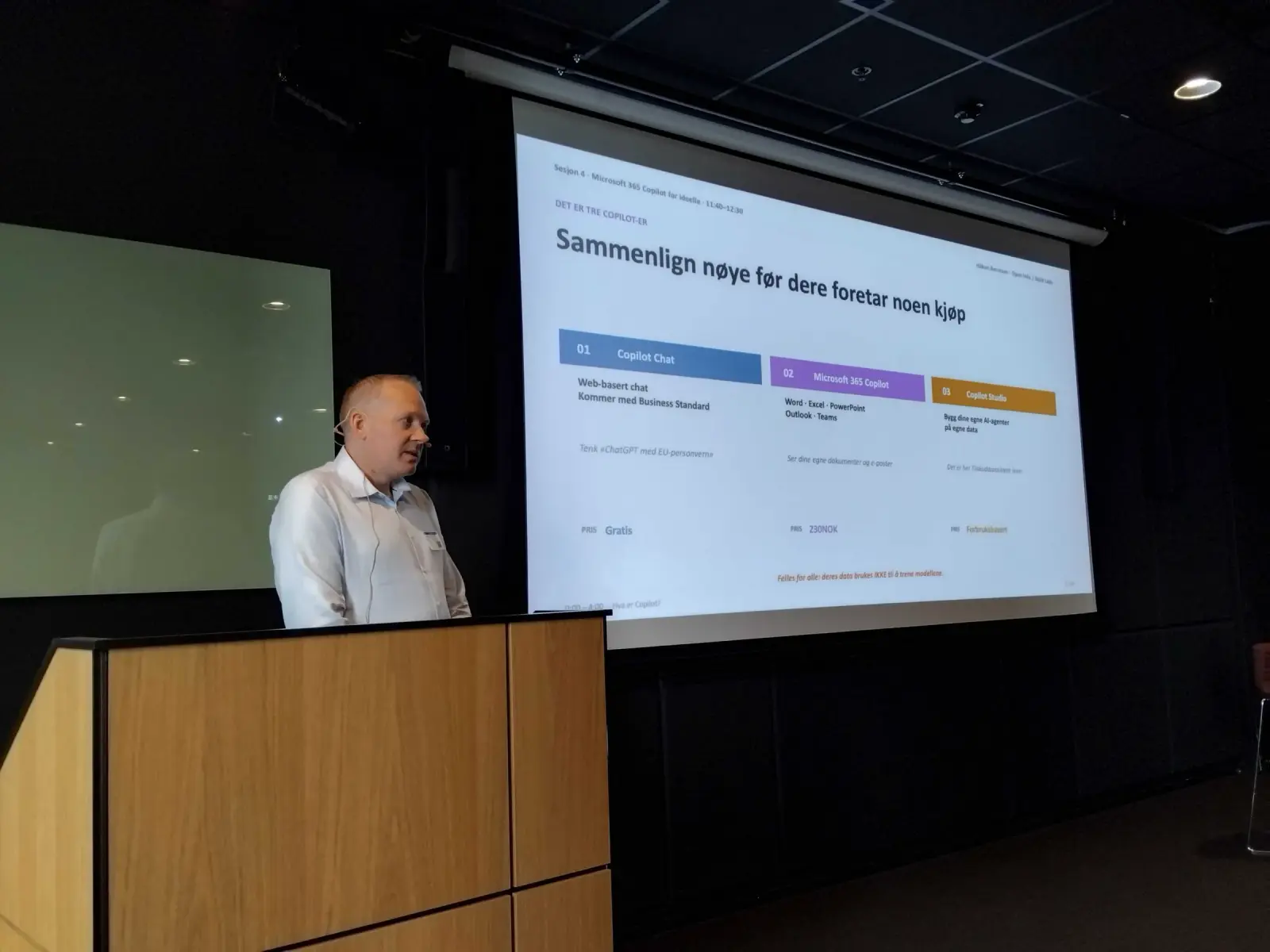
Many organisations considering Microsoft 365 Copilot ask about licences and training first. An equally important question often comes later: what can Copilot actually see? The answer is simple to state, but it takes some work to follow up. Copilot uses the access rights the employee already has. Anything that is shared too widely today can therefore also turn up in the answers.
This article explains why, and gives a short checklist of what you should review before Copilot is switched on.
Copilot sees what the employee can see
Microsoft 365 Copilot works inside Teams, Outlook, Word and SharePoint. It combines language models with your organisation’s own data, such as documents, email, chats and meetings. When an employee asks a question, Copilot draws on content the employee has access to, and nothing more.
This means Copilot does not give anyone new access. It does, however, make it much easier to find what is already available. A document left open in an old team may never have been found through a normal search. When an employee asks Copilot about salaries, board matters or a specific customer, that same document may be used in the answer.
So Copilot is not the problem itself. It shows how access is actually set up, not how you thought it was.
Why old sharing becomes visible now
In most organisations, sharing has grown over time. Someone shared a folder with the whole organisation to get a project going quickly. A team was created as public because that was the default. A former employee shared files from their own OneDrive. None of this was necessarily wrong at the time, but few people have an overview of the total.
As long as the content was hard to find, the risk was small in practice. With Copilot, things become easier to find. That is why launch is a natural time to tidy up, before employees start asking questions.
The same applies to agents that use SharePoint as a knowledge source. It is wise to know what is stored there, and who has access, before the agents are put to use.
Checklist before you switch Copilot on
You do not need to go through every single file. Start with what would have the greatest consequences if the wrong person saw it.
- Sharing links that apply to many people. Look for files and folders shared with links for everyone in the organisation, or for anyone who has the link. Links like these make it hard to know who actually has access. Replace them with sharing to specific people where possible.
- Areas the whole organisation can access. Some sites and folders are open to all employees, for example through a group that covers the whole organisation. Check that this is a deliberate choice.
- Public teams. In a public team, everyone in the organisation can find the content. Consider whether the team should be private.
- Old teams and sites. Projects that have ended often still have open areas with documents. Archive or delete what is no longer used, and remove access that is not needed.
- Sensitive folders. Pay particular attention to personnel matters, salaries, board papers, contracts and health information. Access here should be limited to those who need it.
- OneDrive sharing. Files shared from an individual’s OneDrive are easy to forget. Ask employees to review what they have shared, and with whom.
- Guest access. Copilot answers based on the access rights of the person asking. Even so, the review is a good time to check which external guests still have access to teams and folders.
When this is done, you have a better foundation for Copilot, and a tidier Microsoft 365 environment as well.
Sensitivity labels, if you need more
For some organisations, tidying up sharing is not enough. If you have documents that must be protected wherever they end up, sensitivity labels in Microsoft Purview may be an option. A label can mark a document as, for example, confidential, and it can restrict who can open the content. Copilot respects that protection.
Labels still require planning. Someone has to decide which labels should exist, who applies them, and how they are followed up. Whether they suit you depends on your licences and on how much you want to maintain. For many, good sharing and a tidy structure are a good enough first step.
Do it before, not after
It is easier to tidy up before employees have started using Copilot than to fix things after something has turned up in an answer. The review does not need to be big. The most important thing is to know where the sensitive data is, and who has access to it.
It can also be wise to start with a smaller group of users. That way you gain experience of what Copilot finds before everyone gets access.
How we help
Skjld Labs is a Microsoft Solutions Partner. We set up Copilot Chat, Microsoft 365 Copilot and Copilot Studio. Before we switch Copilot on, we review access and sharing in SharePoint and Teams, so Copilot does not surface anything it should not.
We also handle the setup of licences, channels, connections and sign-in for your environment, and run hands-on courses and workshops in Norwegian, tailored to your tasks.
Read more about how we set up Copilot at skjldlabs.com/en/copilot. If you are unsure where you stand, you can book a free thirty-minute call.